Skip to content
Step-by-step guide

How to complete your onboarding.

Everything happens in one secure place. Watch the short video, or follow the steps below. Each item shows about how long it takes, and you can save and come back anytime.

Sign in

How-to video · about 4 minutes · turn on your sound

1

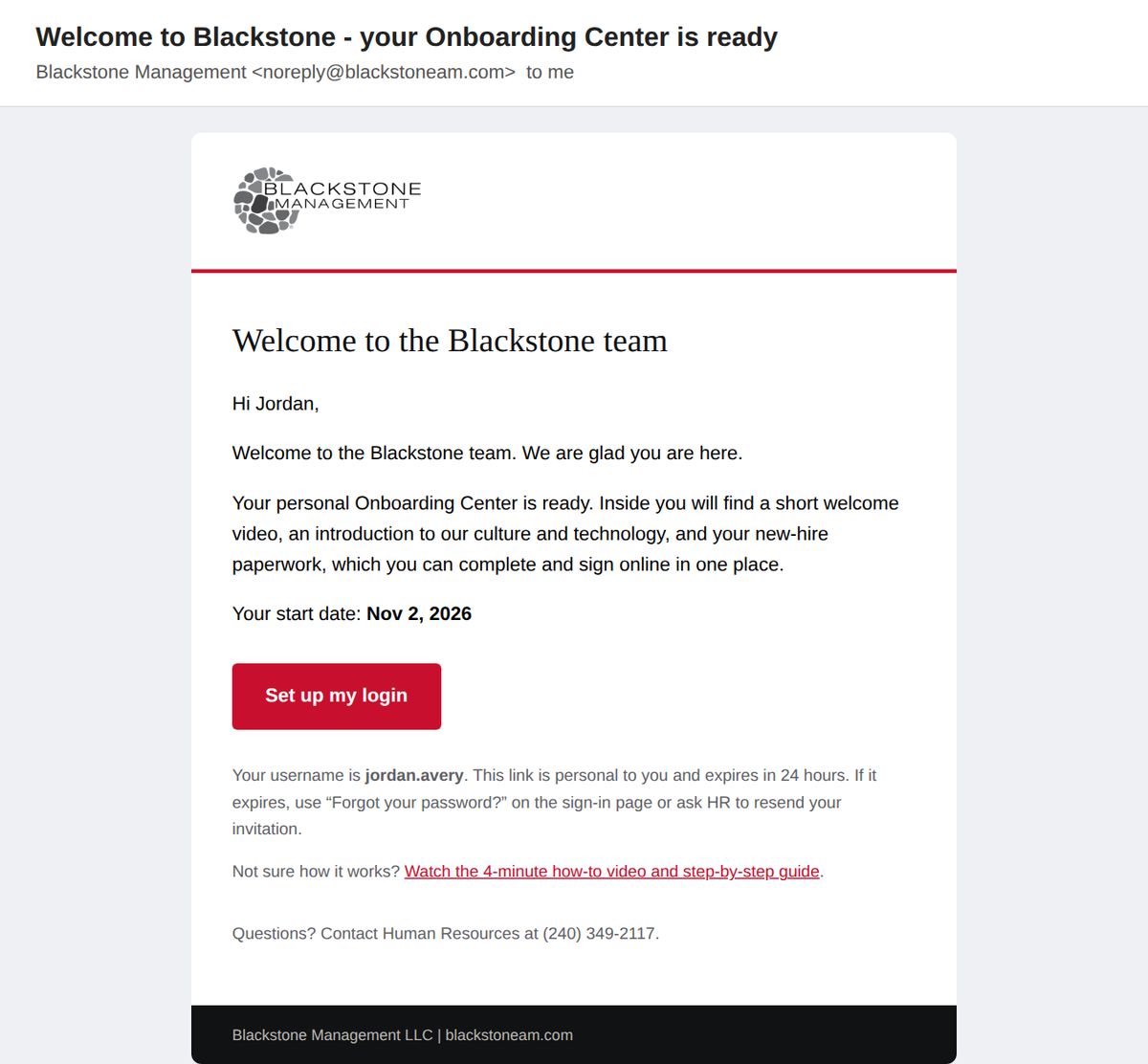
Open your welcome email

HR sends an email titled “Welcome to Blackstone - your Onboarding Center is ready.” It goes to the personal email address you gave us.

  • Click the red Set up my login button.
  • Do not see it? Check your spam or junk folder, or search your inbox for “Blackstone.”
  • The link is personal to you and works for 24 hours.
The Blackstone welcome email with the Set up my login button
The welcome email. Click Set up my login.
2

Create your password

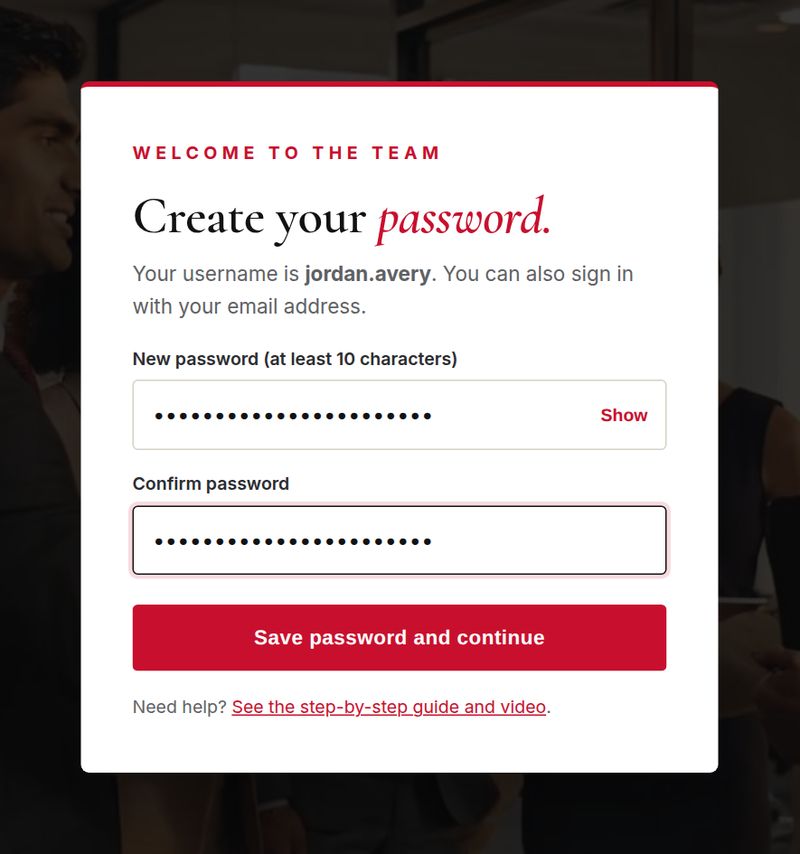
The button opens a page where you choose your password. This is the only time you need the email link.

  • Your username is shown at the top (usually first.last). You can also sign in with your email address.
  • Type a password with at least 10 characters, then type it again to confirm. Tap Show to see what you typed.
  • Click Save password and continue. You go straight to your dashboard.
Create your password page
Choose a password of 10 or more characters.
3

Sign in next time

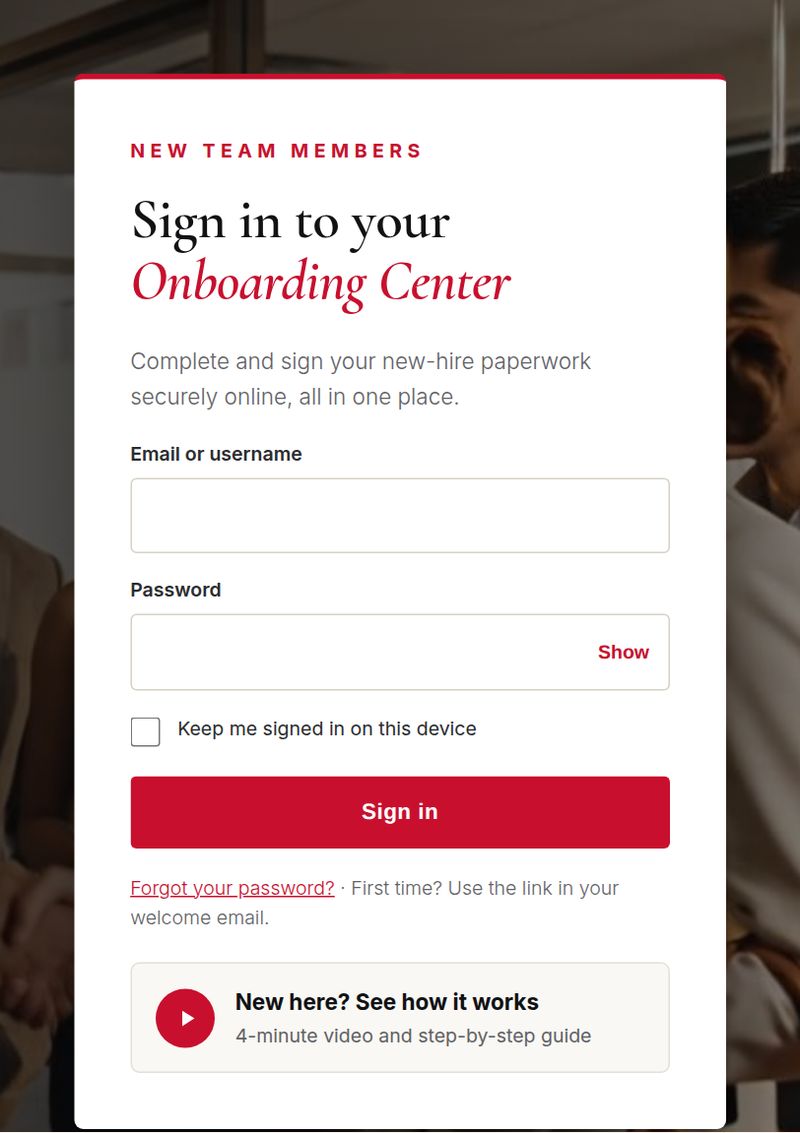
Go to blackstoneam.com/onboarding and use the Sign in box with your email (or username) and password.

  • On your own device, check Keep me signed in so you do not have to sign in every time.
  • Forgot your password? Click Forgot your password?, enter your email, and we will send a new link.
The Onboarding Center sign-in box
Sign in with your email and password.
4

Your dashboard

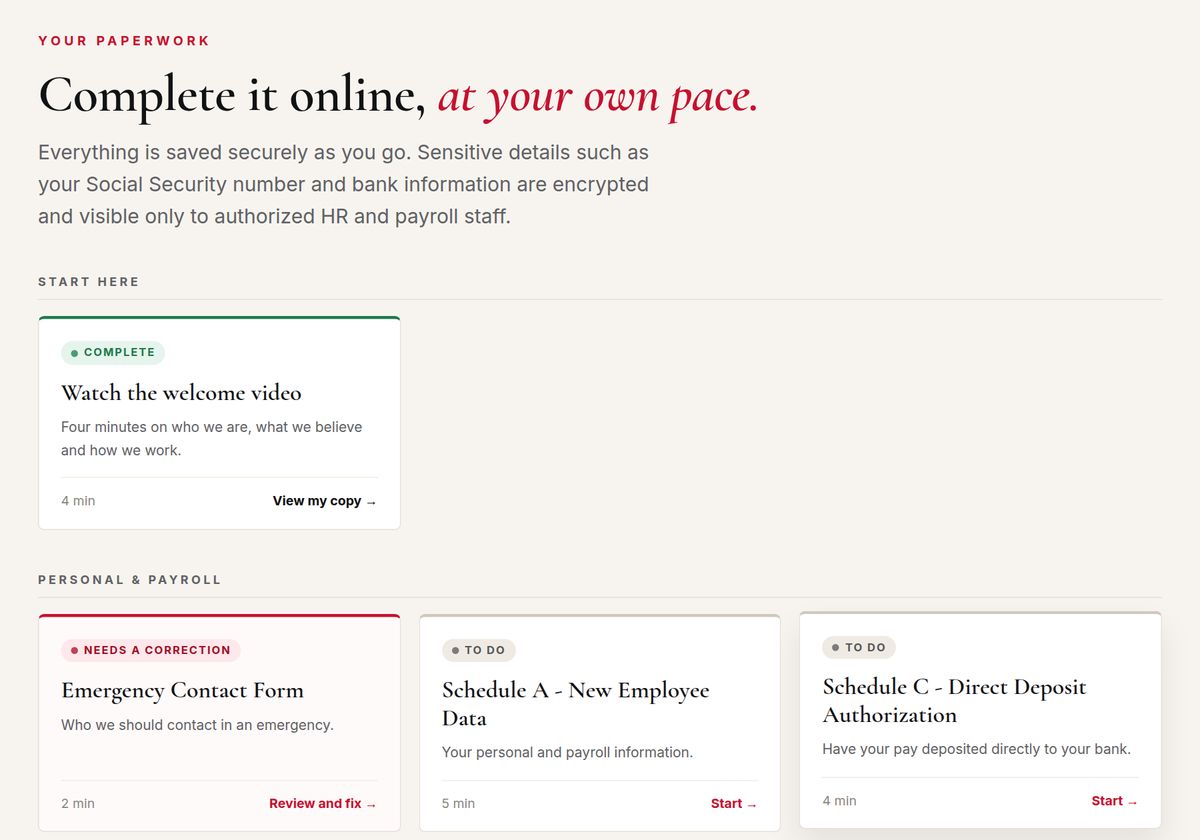
This is your home base. The circle shows how much is done. Each card is one item. Click a card to open it.

To do not started yet In progress saved, not sent yet sent to HR Needs a correction HR left you a note Complete approved by HR
The dashboard with progress circle and paperwork cards
Start with the welcome video, then work through the cards in any order.
5

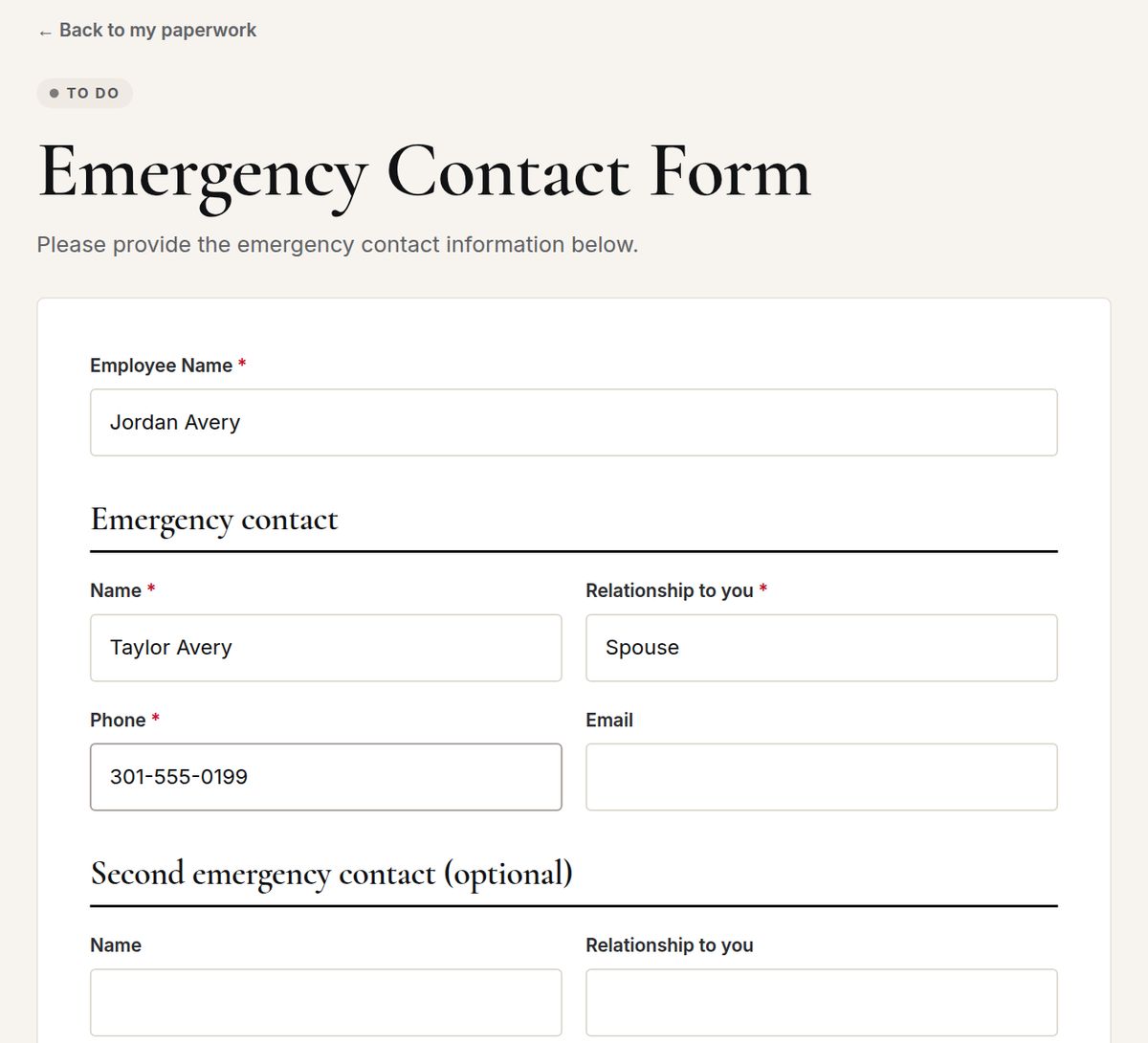
Fill out a form

  • Fields with a red * are required. Everything else is optional.
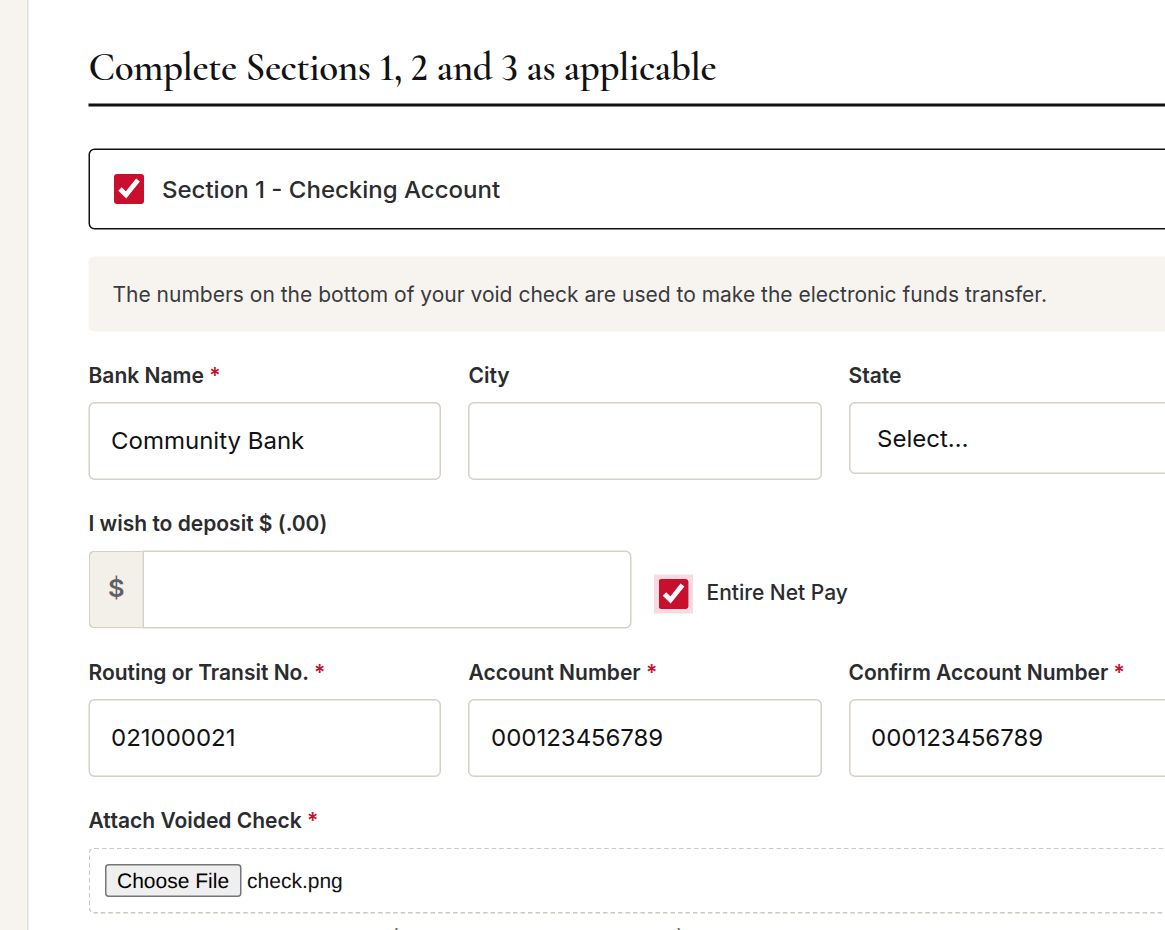
  • Some questions only appear after you choose an answer, for example the bank fields appear after you pick New Payroll Deposit and check Section 1 - Checking Account.
  • Need to stop? Click Save and finish later. Your answers are kept, and the card shows In progress.
  • If something is missing, the page shows a red message at the top and highlights the field to fix.
A form with fields and the Save and finish later button
Required fields are marked with a red star.
6

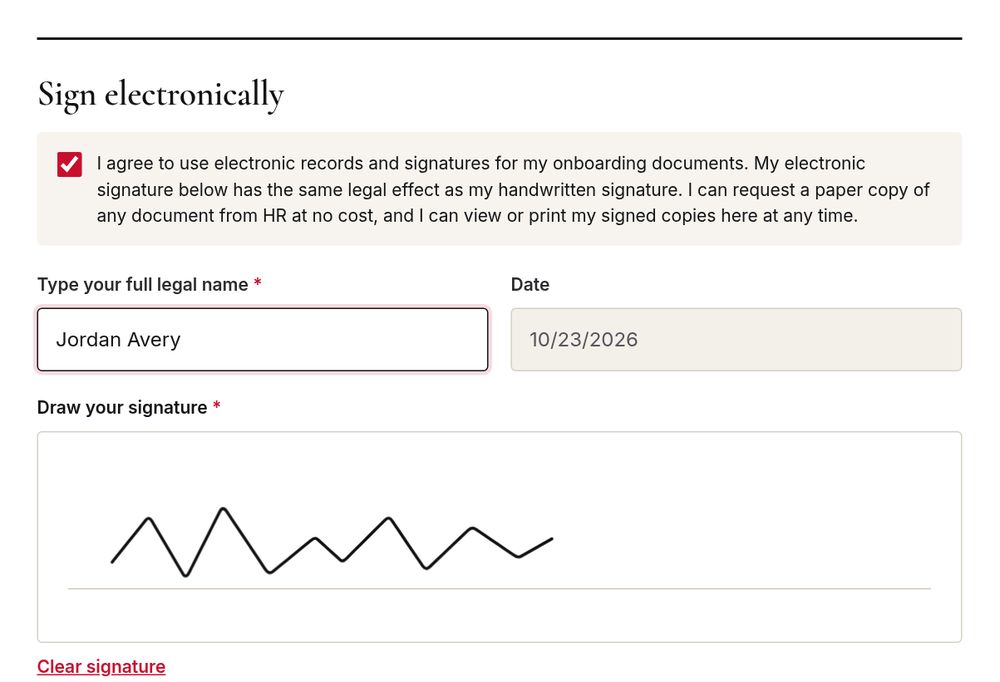
Sign electronically

Forms and agreements that need a signature end with a Sign electronically box.

  1. Read the agreement in the scrolling box above it.
  2. Check the box agreeing to use electronic signatures.
  3. Type your full legal name. It must match the name HR has on file.
  4. Draw your signature with your finger (phone or tablet) or your mouse. Click Clear signature to start over.
  5. Click Sign and submit.
The Sign electronically section with typed name and signature pad
Type your name, draw your signature, then Sign and submit.
7

Upload a document

A few items ask for a file, such as a voided check or your state withholding form.

  • Click Choose File. On a phone you can take a photo right then.
  • PDF, JPG or PNG files up to 10 MB work. Make sure the whole page is in the photo and easy to read.
  • Once attached, the file name appears under the button. Choosing another file replaces it.
The file upload field for a voided check
Attach a clear photo or scan.
8

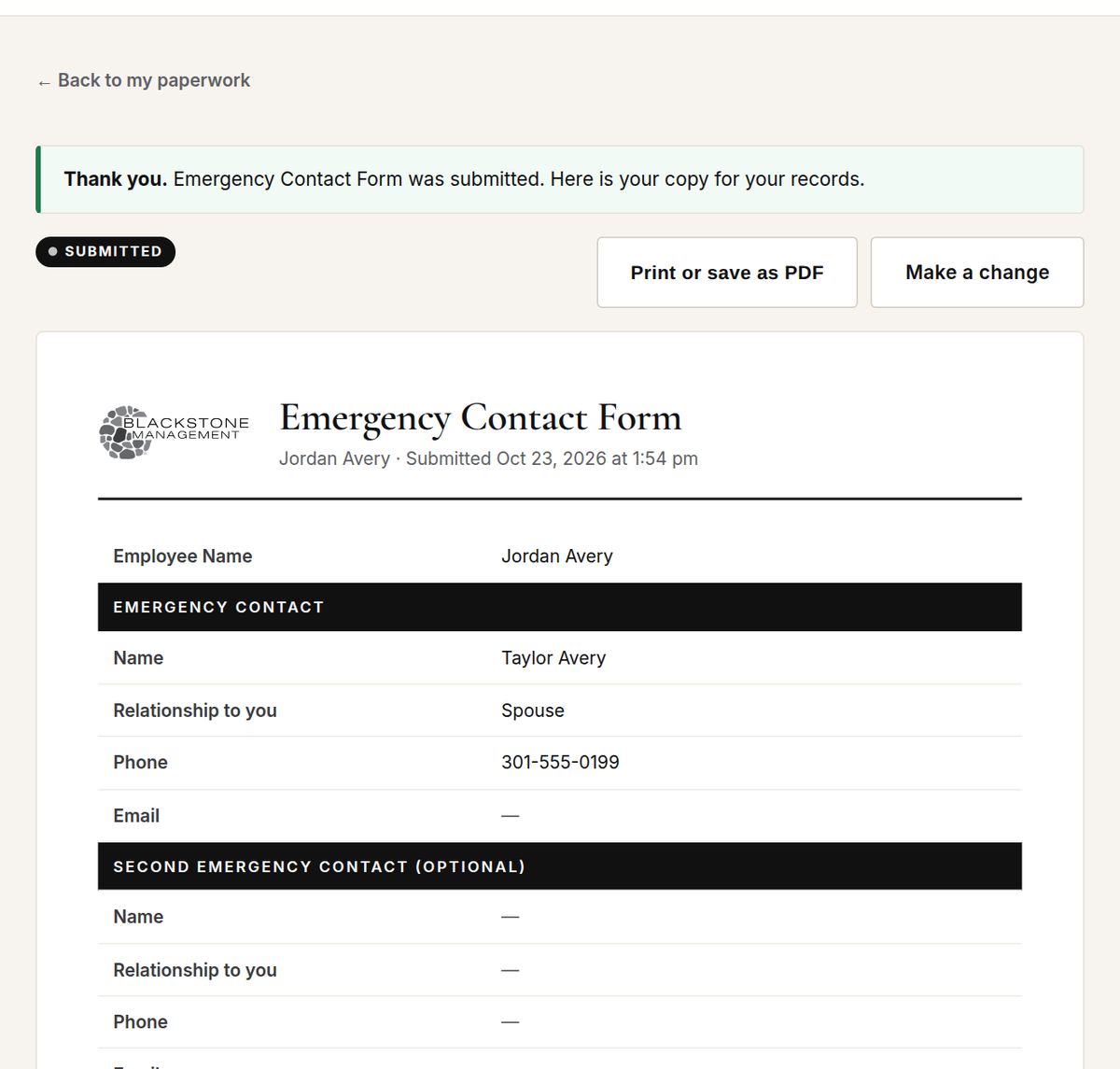
After you submit

  • You see a copy of what you sent. Click Print or save as PDF to keep one for your records.
  • Made a mistake? Click Make a change until HR approves it. After that, contact HR.
  • If HR needs a correction, you get an email and the card turns red with their note. Open it, fix it and submit again.
  • When every card says Complete, you are done. HR takes it from there.
Your signed copy with print button
Every item you submit has a printable copy.

What you will need

Gather these before you start and it goes quickly:

  • Your Social Security number and date of birth
  • Your home address
  • Two emergency contacts (name and phone; one is required)
  • Your bank routing and account numbers and a voided check, if you want direct deposit
  • Information about other jobs or dependents for your W-4, if any
  • Original identity and work-authorization documents to bring on your first day for Form I-9
  • A phone camera or scanner for uploads

Where to find it

You needWhere to find it
Social Security numberYour Social Security card, a W-2 or a past tax return. Lost your card? You can request a replacement at ssa.gov.
Routing number (9 digits)The first group of numbers along the bottom left of a check. It is also in your bank’s app or website, usually under account details or direct deposit.
Account numberThe group of numbers right after the routing number on the bottom of a check, or in your bank’s app under account details. You type it twice to make sure it is right.
Voided checkTake a check, write VOID across the front in large letters (do not cover the numbers at the bottom), then take a photo. No paper checks? Ask HR what else they can accept.
W-4 answersIf you have one job, no working spouse and no dependents, you usually only fill in Step 1 and sign. If you have more than one job, a working spouse or dependents, the free IRS Tax Withholding Estimator helps you decide. HR cannot give tax advice.
State withholding formThe portal links to the official Maryland, D.C. and Virginia forms. Choose the one for your situation (ask HR if you are not sure), fill it in, sign it, then upload a photo or PDF.
Form I-9 documentsYou choose which original, unexpired documents to bring from the official USCIS Lists of Acceptable Documents. HR reviews them in person within three business days of your start date.

Trouble? Start here

My link says it expired.
Setup links work for 24 hours and only once. Go to the sign-in box, click Forgot your password?, enter your email and use the new link. Or ask HR to resend your invitation.
It says my name does not match.
Type your name exactly as HR has it (shown in the message). If your legal name is different, contact HR so they can update it.
My signature will not draw.
Use one finger and draw inside the white box. If nothing appears, scroll so the box is fully on screen, or try another browser such as Chrome, Safari or Edge.
A button does nothing or a page looks wrong.
Refresh the page. Make sure you are using an up-to-date browser. Your saved answers are not lost.
Is my information safe?
Yes. The connection is encrypted, your Social Security and bank numbers are encrypted when stored, and only authorized HR and payroll staff can view them. Every view is logged.
Can I do this on my phone?
Yes. Everything works on a phone, tablet or computer. A computer is easiest for the longer forms.

Still need help?

Contact Human Resources at (240) 349-2117 or [email protected]. We are happy to walk you through it.